Woodruff Lab
2024-10-11
git?vs
8266b5f (HEAD -> more-revisions, origin/more-revisions) update curtis refs
a7500fe more more more
5189e38 (tag: v0.6.1, origin/main, origin/HEAD, main) Merge pull request #203 from Klepac-Ceraj-Lab/editorial
5b82aae last ? tweaks
f730420 rebuild diff
cb36033 short title and rearrange post-text
a8dfdf9 Guilherme comments
0c9df09 remove abreviation in abstract
75dd314 hack up abstract
7a1546b change Figure-> fig.gitgit model
Warning
Seeing the value of git often requires using it âwellâ, but using it well requires practice. Being motivated to practice is hard without seeing the value!
git model
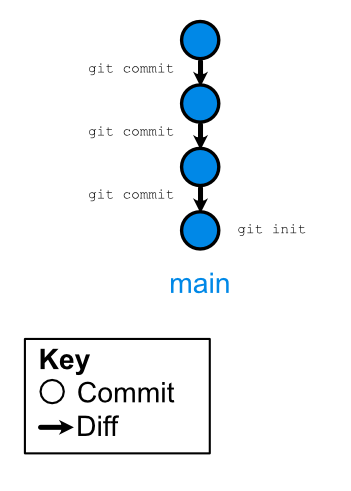
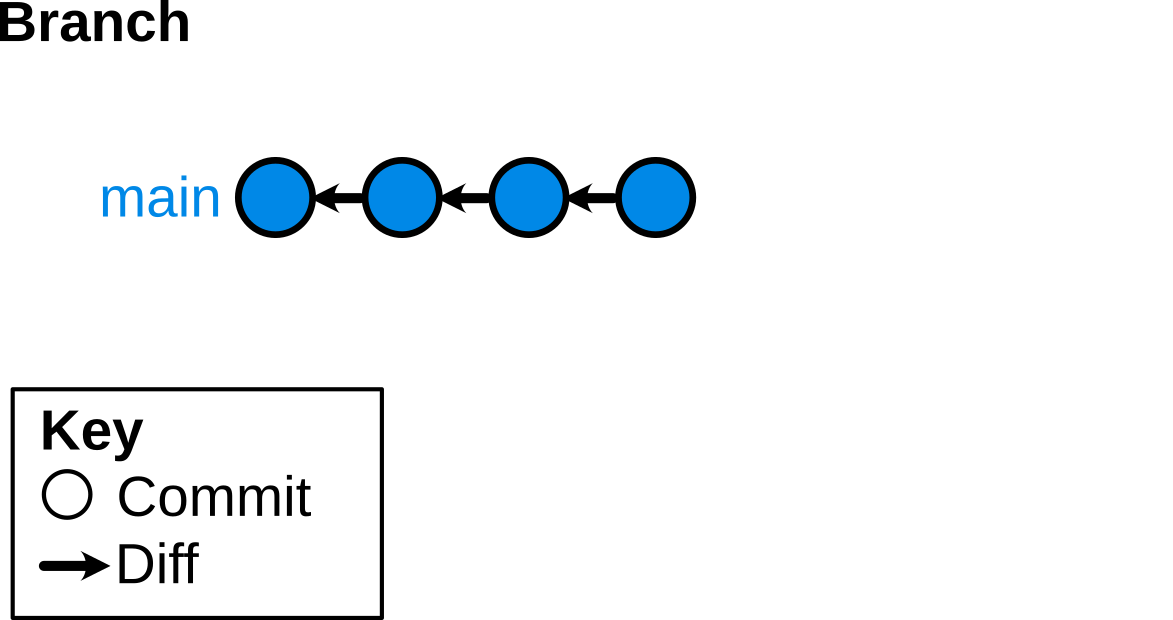
git good for?git NOT good for?.fastq).pdf).csv)::: - git: the software to manage version control - repository (repo): a directory with superpowers - remote: another place where your git repo lives (often github / gitlab, but itâs still just a directory) - commit (noun form): a snapshot of the state of all of your files at a given time - note: each commit only stores a diff from the previous state - diff: summary of line-by-line changes from one state to the next - tracking: files that have a state recorded by git (eg they have been committed) - stage: file(s) that have a change that should be registered in the next commit. - branch: a series of commits. The default is usually called master or main :::
::: - git init: give your directory git superpowers (usually just done once on a brand new project) - This automatically sets up a default branch main or master - git clone $URL: make a local copy of some remote repo - this automatically sets up $URL as a remote called origin - git add $FILE: stage a file to be committed - git commit -m 'Some commit message': commit staged files - more commonly, use git commit -am 'Some commit message', which stages AND commits any files that had previously been tracked. - git push: sync commits from local to remote (only for current branch) - git pull: sync commits from remote to local (only for current branch) - git branch $NAME: create a new branch with name $NAME - git checkout $NAME: set working state to branch $NAME - you can create and checkout a branch at the same time with git checkout -b $NAME :::
$ git checkout main
$ git reset --hard
$ git checkout -b revisions # create a new branch, and check it out
# make some edits to files
$ git commit -am 'made changes'
# make some edits to file1.txt and file2.txt
$ git add file1.txt
$ git commit -m 'Change file1'
$ git add file2.txt
$ git commit -m 'Change file2'
$ git checkout main
$ git merge revisionssee it in a terminal: https://asciinema.org/a/pFVUuEbZP6soYoYjvOKE1Eo52
$ git checkout main
$ git reset --hard
$ git checkout -b revisions # create a new branch, and check it out
# make some edits to files
$ git commit -am 'made changes'
# make some edits to file1.txt and file2.txt
$ git add file1.txt
$ git commit -m 'Change file1'
$ git add file2.txt
$ git commit -m 'Change file2'
$ git checkout main
$ git merge revisionssee it in a terminal: https://asciinema.org/a/pFVUuEbZP6soYoYjvOKE1Eo52
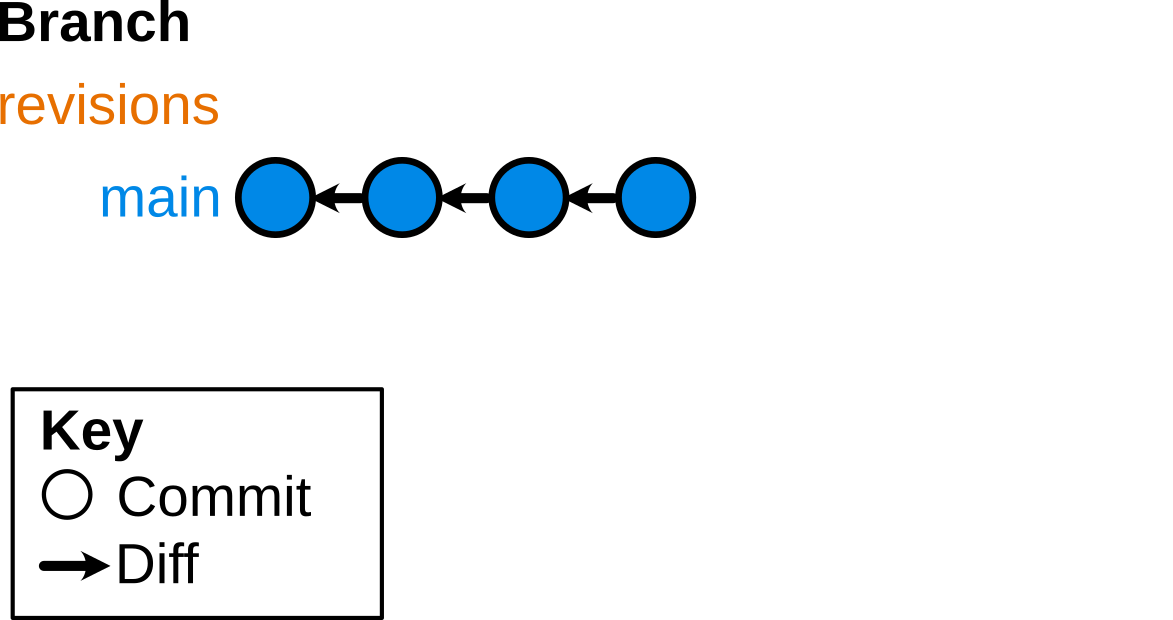
$ git checkout main
$ git reset --hard
$ git checkout -b revisions # create a new branch, and check it out
# make some edits to files
$ git commit -am 'made changes'
# make some edits to file1.txt and file2.txt
$ git add file1.txt
$ git commit -m 'Change file1'
$ git add file2.txt
$ git commit -m 'Change file2'
$ git checkout main
$ git merge revisionssee it in a terminal: https://asciinema.org/a/pFVUuEbZP6soYoYjvOKE1Eo52
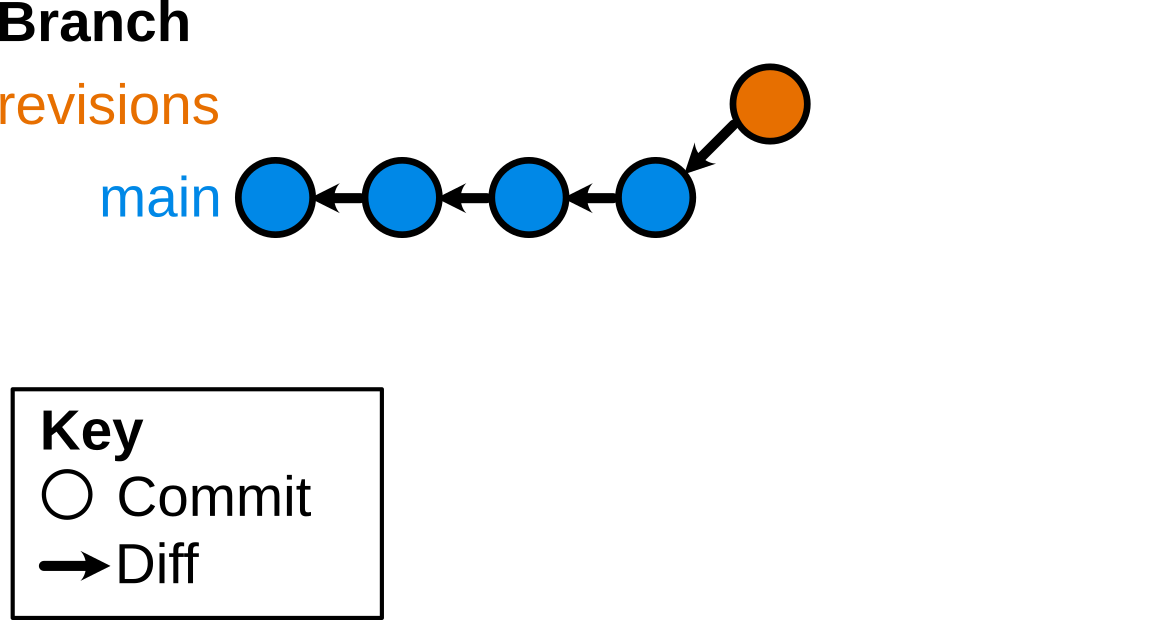
$ git checkout main
$ git reset --hard
$ git checkout -b revisions # create a new branch, and check it out
# make some edits to files
$ git commit -am 'made changes'
# make some edits to file1.txt and file2.txt
$ git add file1.txt
$ git commit -m 'Change file1'
$ git add file2.txt
$ git commit -m 'Change file2'
$ git checkout main
$ git merge revisionssee it in a terminal: https://asciinema.org/a/pFVUuEbZP6soYoYjvOKE1Eo52
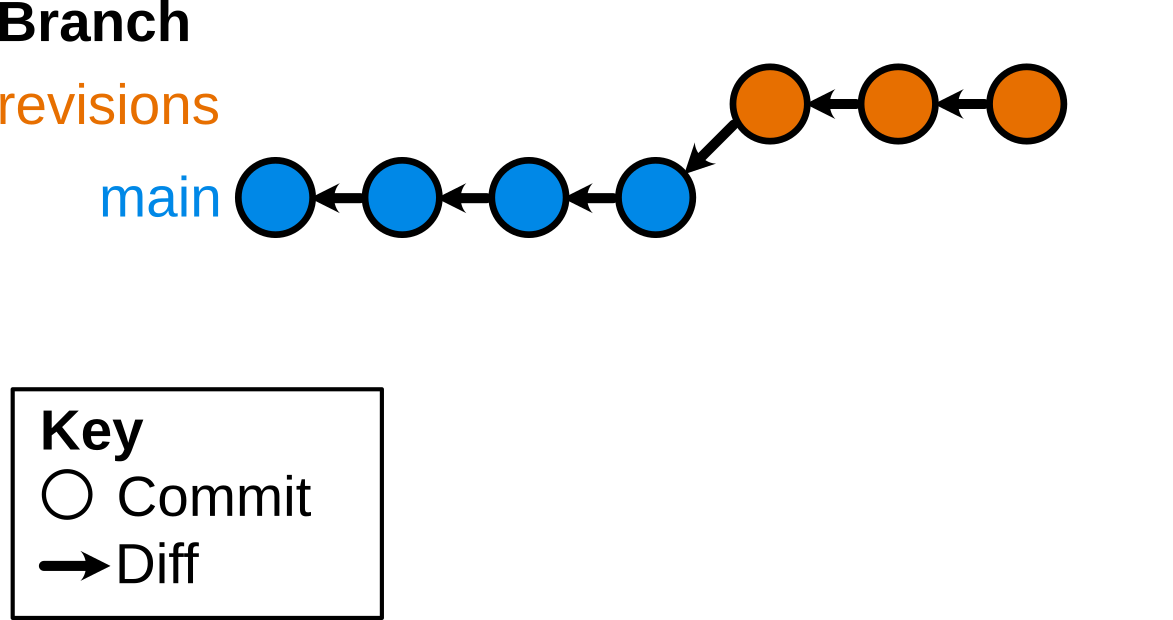
$ git checkout main
$ git reset --hard
$ git checkout -b revisions # create a new branch, and check it out
# make some edits to files
$ git commit -am 'made changes'
# make some edits to file1.txt and file2.txt
$ git add file1.txt
$ git commit -m 'Change file1'
$ git add file2.txt
$ git commit -m 'Change file2'
$ git checkout main
$ git merge revisionssee it in a terminal: https://asciinema.org/a/pFVUuEbZP6soYoYjvOKE1Eo52
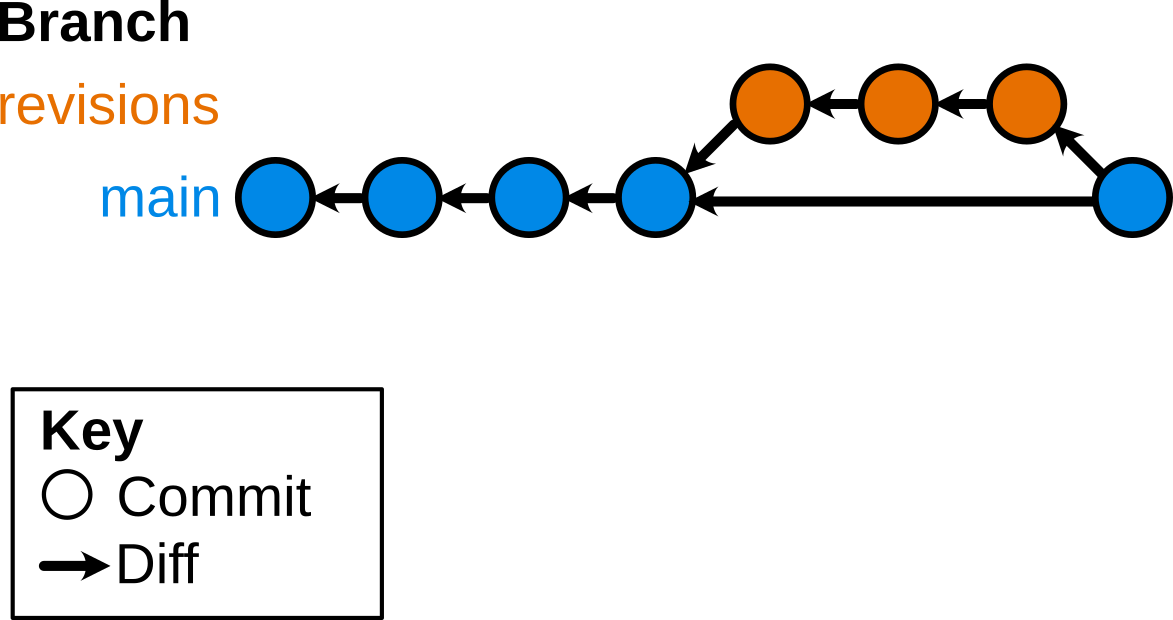
$ git checkout main
$ git reset --hard
$ git checkout -b revisions # create a new branch, and check it out
# make some edits to files
$ git commit -am 'made changes'
# make some edits to file1.txt and file2.txt
$ git add file1.txt
$ git commit -m 'Change file1'
$ git add file2.txt
$ git commit -m 'Change file2'
$ git checkout main
$ git merge revisionssee it in a terminal: https://asciinema.org/a/pFVUuEbZP6soYoYjvOKE1Eo52
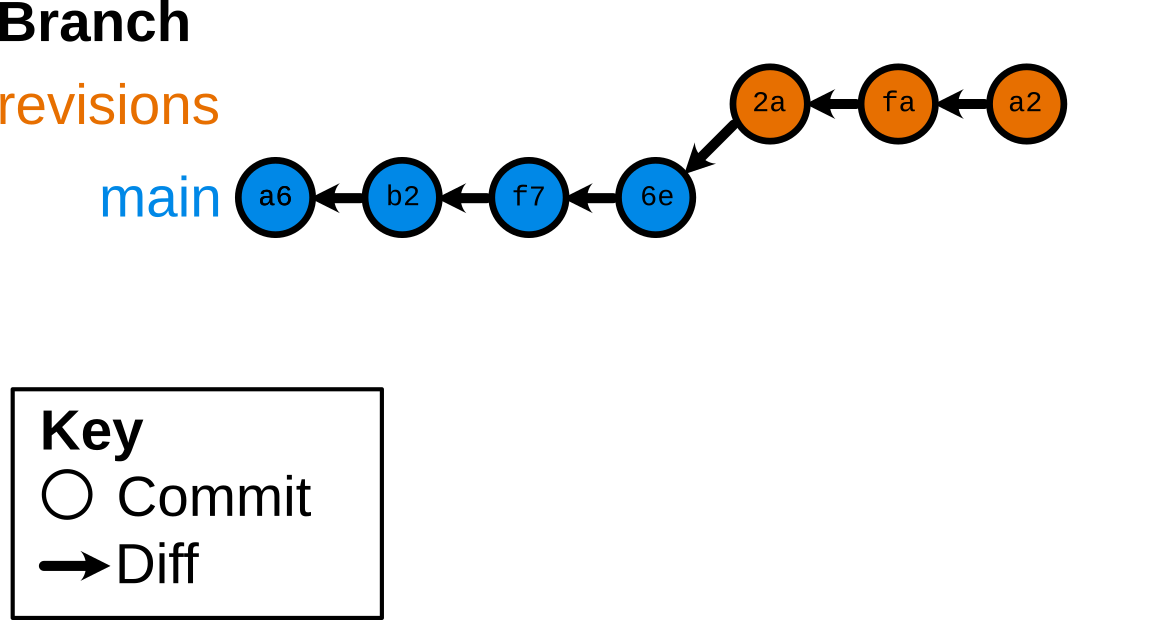
$ git checkout main
$ git reset --hard
$ git checkout -b revisions # create a new branch, and check it out
# make some edits to files
$ git commit -am 'made changes'
# make some edits to file1.txt and file2.txt
$ git add file1.txt
$ git commit -m 'Change file1'
$ git add file2.txt
$ git commit -m 'Change file2'
$ git checkout main
$ git merge revisionssee it in a terminal: https://asciinema.org/a/pFVUuEbZP6soYoYjvOKE1Eo52
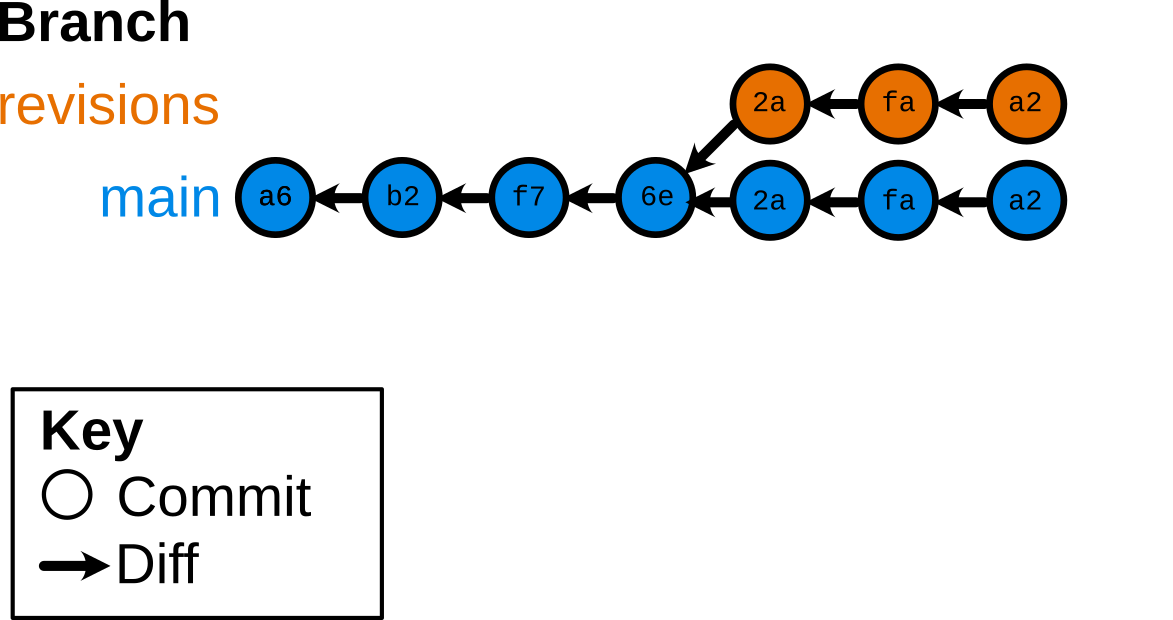
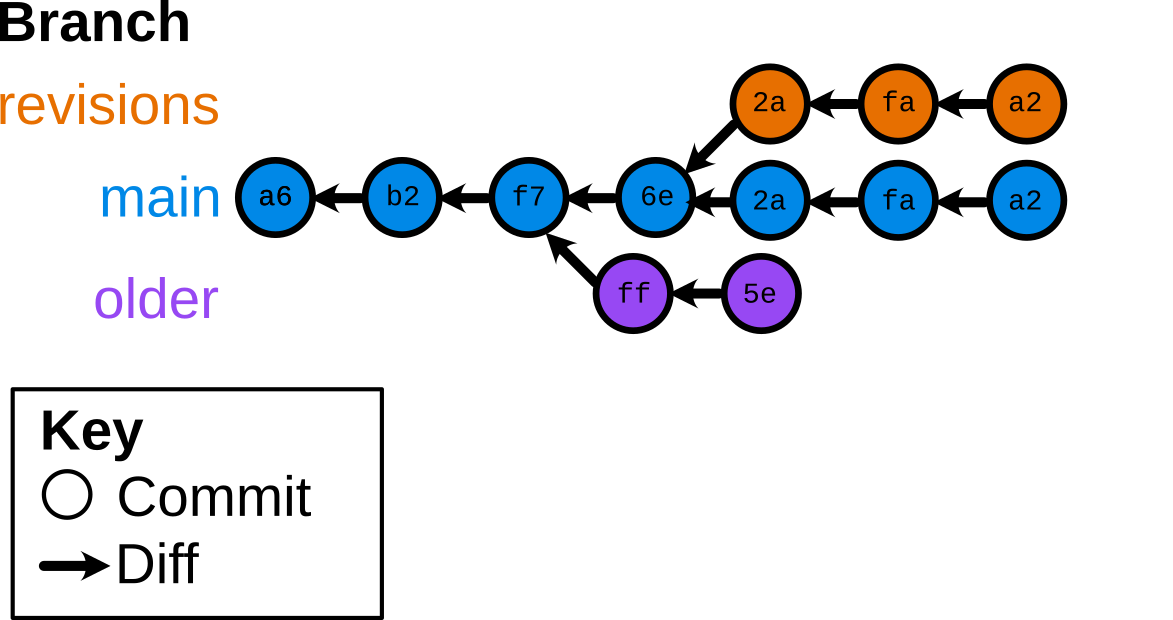
see it in a terminal: https://asciinema.org/a/5msKW2uk49gIf7UBmAuezihqY
gitgit status frequently
git log --oneline --graph (I set this to gl)main when there is a complete âproductâ (eg a figure, model, cleaned dataset)--no-ff to visualize branches (you can set this as the default with git config --global merge.ff false)Very large commits
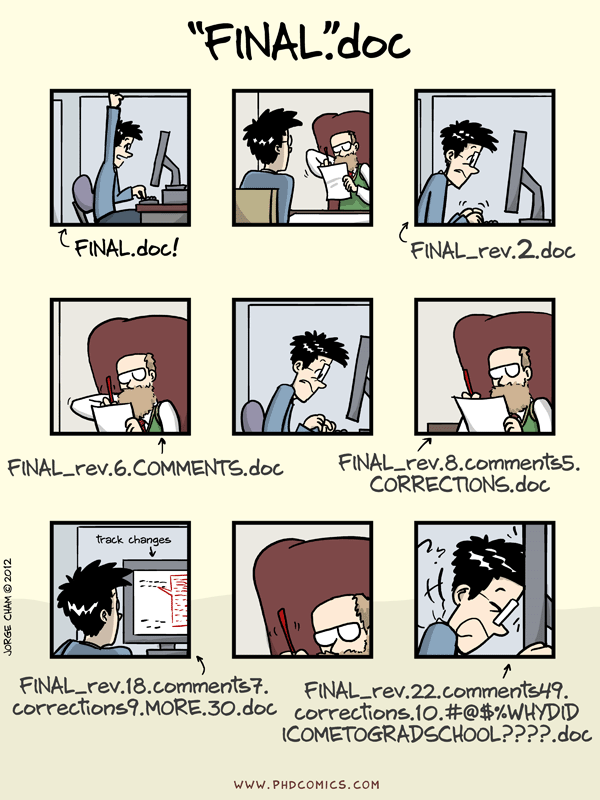
This often hapens when you forget about git for a while, then think âoh crap, I should be committing this!â, then do
The problem: diffs for very large commits arenât helpful, and any attempt to merge accross branches will almost certainly lead to messy conflicts.
The Solution: Commit more frequently
You should commit approximately every time you feel like you should save the file, at least in the beginning.
When you inevitably forget anyway, try to commit one file at a time, and use git diff to see what has changed so that you can have an informative commit message. If you have a lot of different changes in one file, use git add --patch $FILE do just stage portions of the changes.
Merge conflict paralysis
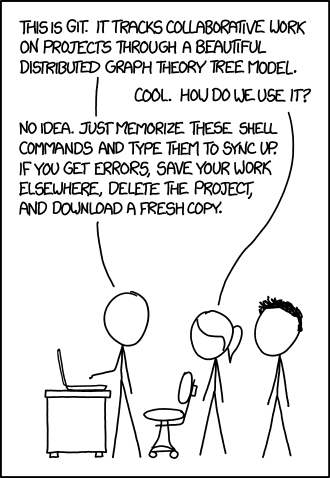
Especially if youâre working on your own, on one branch at a time, you can go a long time without encountering merge conflicts. Then, when one inevitably arises, you have no idea what do do.
The problem: using git pull or git merge in a way that generates a a merge conflict puts your code in an un-runnable state, and blocks the ability to continue working.
The Solution: Donât panic! (42)
git is made for merge conflicts. You can almost always recover.
git merge --abort. This should undo the pull or merge that you attempted.git status and git log.Oops! I committed something I shouldnât have
Committing very large files or files that contain private information (eg identifiable data, security keys) can often happen by mistake, espcially if you use git add . (donât do that!).
The problem: Even if you later do git rm $FILE, the addition and removal of those files are still in your history!
The Solution: pay attention to what you commit
You can use a .gitignore file to avoid accidentially committing eg .csv or .pdf files. If thereâs one of those files you actually do want to track, you can always do git add --force $FILE. You can have per-repo, per-directory, or even global .gitignore files!
If you do commit something sensitive, follow these steps to erase it. Note that this will change every commit downstream of adding the file (and if you later try to merge branches in other places, they may still have the data).
Abandoning git

The Solution: use git!
Itâs worth it!
git social networks (eg GitHub)git pull before starting a new branchgit clone into your user account)git clone from your fork to your computergit push --set-upstream origin $BRANCH_NAMEdelta - better diffs: https://github.com/dandavison/deltastarship - better prompts: https://starship.rsgitkraken - the best git GUI: https://www.gitkraken.com
If that doesnât fix it, git.txt contains the phone number of a friend of mine who understands git. Just wait through a few minutes of âItâs really pretty simple, just think of branches asâŚâ and eventually youâll learn the commands that will fix everything.